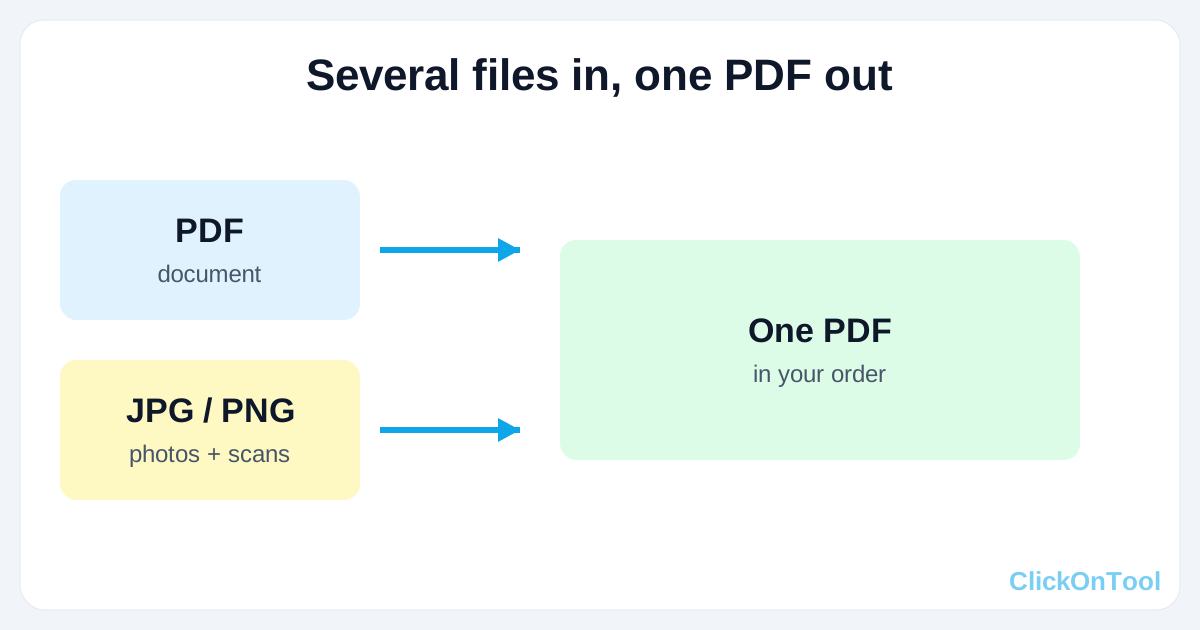
To merge with a PDF, open a browser-based PDF merger, upload the files you want to combine in the order you want them, arrange them if needed, and download a single PDF. The files can be PDFs, JPG images, PNG images, or a mix of both. For the two most common cases, see our dedicated guides: merge JPG to PDF and merge PDF and JPG.
The problem is that documents rarely arrive as one file. A job application is a CV plus certificates plus a cover letter. A visa application is a form plus scans plus photos. An assignment is several chapters saved separately. Sending them as five attachments is messy, and some portals only accept one file.
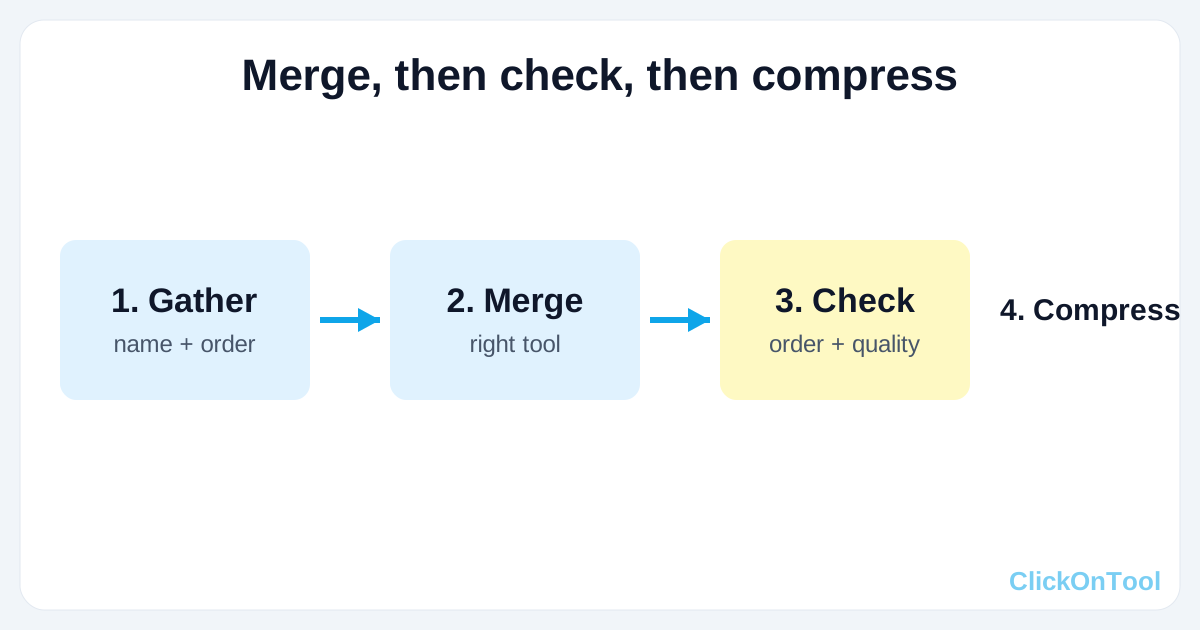
This guide walks you through four steps: gather and order your files, merge them, check the result, and only then compress it if it is too big. The examples use the free PDF merger, JPG to PDF and PNG to PDF tools on ClickOnTool, which process files inside your browser so they never leave your device.
What "merge with PDF" actually means
People use the phrase for three different jobs, and the right tool depends on which one you mean.
- Merge several PDFs into one PDF: several documents, one output file, pages in the order you choose. Use the PDF merger.
- Merge images into a PDF: JPG or PNG photos and scans, turned into pages of a single PDF. Use JPG to PDF for photos and PNG to PDF for PNG files.
- Merge a PDF with images: a PDF document plus extra image pages, in one file. Upload the PDF and the images together in the merger, in the order you want them.
All three jobs have the same rule: the output is only as good as the order and quality of the inputs. A merger does not fix a blurry scan, a sideways page, or a missing page. Check the inputs first.
Before you merge: gather, name and order your files
- Collect every file you need, and name them in the order they should appear, for example 01-cover-letter.pdf, 02-cv.pdf, 03-certificate.jpg. Clear names prevent a page ending up in the wrong place.
- Check each file opens correctly and is not password-protected. A merger cannot reliably read a locked PDF, and it will usually fail on that file.
- Check orientation. A sideways scan will stay sideways in the merged PDF, so rotate it before merging if your tool offers that step.
- Keep the originals. Merging creates a new file, it does not change your originals, but keep them anyway in case you need to redo the order.
Name files with numbers at the start, such as 01, 02, 03. Most mergers keep your upload order, but numbered names make a wrong order obvious before you download.
Step 1. Merge PDFs into one PDF
- Open the PDF merger page.
- Select your PDF files from your device, in the order you want them.
- Arrange them if the tool lets you drag to reorder, and remove any file you added by mistake.
- Click merge and download the single PDF.
- Open the result and check the page order and the total page count against what you expected.
This is the right tool when every input is already a PDF. If some inputs are images, use Step 2 or Step 3 instead, or convert the images to PDF first and then merge everything together.
Step 2. Merge images into a PDF
- Open JPG to PDF for photos, or PNG to PDF for PNG files.
- Select your images in the order they should appear as pages.
- Choose the page size and orientation the tool offers, if any, and keep it consistent across all pages so the result does not jump between sizes.
- Convert and download the PDF, then open it and check that every image is the right way up and in the right order.
Scanned documents are just images, so this step is also how you turn a set of scans into a single PDF. If a scan is very large, compressing the images before converting will keep the final PDF smaller, but do it from the originals, not from an already compressed copy.
Step 3. Merge a PDF with images in one file
When your inputs are a mix, you have two reliable routes. The first is to convert the images to PDF first, then merge all the PDFs together with the PDF merger. The second is to upload the PDF and the images together in a merger that accepts mixed inputs, in the exact order you want them. Either route gives the same result if the order is right.
A common example is a job application: a CV in PDF, a cover letter in PDF, and two certificate scans as JPG. Convert the two scans to PDF, then merge all four PDFs in order: cover letter, CV, certificate one, certificate two. The output is one clean file to upload or email.
Step 4. Check the result, then compress only if needed
- Page order: does every page appear in the order you intended, with nothing missing and nothing duplicated?
- Orientation: is every page the right way up?
- Quality: are scans readable at 100 percent zoom, and are photos clear?
- File size: is it under the portal or email limit? If not, compress the merged PDF with the PDF compressor, starting from the merged file, and check quality again afterwards.
- File name: save it with a clear name, such as application-complete.pdf, not a generic name like merged.pdf, so the recipient knows what it is.
Do not compress before merging if you can avoid it. Compress once, at the end, on the merged file. Compressing twice, once before and once after, stacks visible damage on images and scans.
Merging without the mess
To merge with a PDF, gather your files, name them in order, merge them with the right tool for the file types you have, check the page order, and compress only at the end if the file is too big. The result is one file, in the right order, ready to upload or email. Try the free PDF merger on ClickOnTool, with no signup and no upload, and for the two most common cases, read our merge JPG to PDF guide and our merge PDF and JPG guide.