To compress a PDF, open a browser-based PDF compressor, upload your file, choose a balanced compression level, and download the smaller result. Most PDFs shrink a lot in one pass, because the bulk of the file is usually images, not text. If you need an exact size for a form, the same steps continue in our 200KB PDF guide and our 100KB PDF guide.
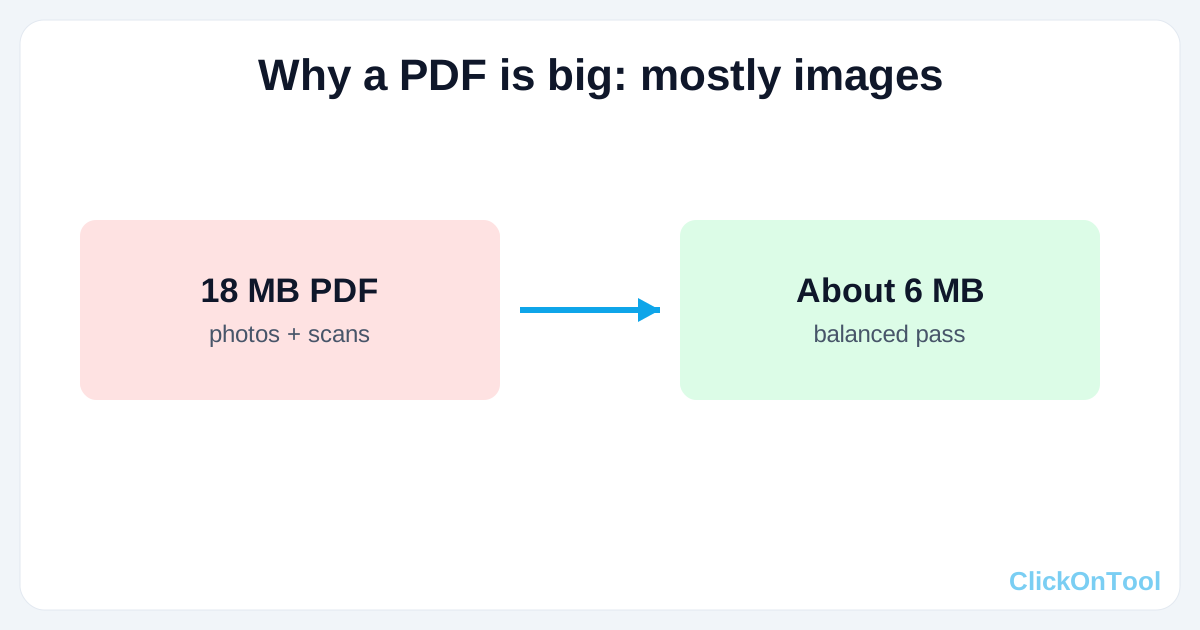
The problem is familiar: you finish a report, hit save, and the PDF is 18 MB while your email refuses anything over 10 MB, or a portal says the file must be under 2 MB. The document itself is not the problem. Text is tiny. What inflates a PDF is images: high-resolution photos, screenshots, logos, and especially scanned pages, which are really just pictures of paper.
This guide walks you through four steps: check what is making the PDF big, compress it, check the result, and only then try a stronger pass if you still need one. The examples use the free PDF compressor on ClickOnTool, which processes files inside your browser so they never leave your device.
Why PDFs get so big, and what compression actually does
A PDF that is only words might be a few hundred kilobytes even if it is dozens of pages long. Add one scanned page at full resolution and the same file can jump by several megabytes. Add a dozen photos and it is suddenly too big to email.
Good compression re-encodes the images inside a PDF at a sensible resolution and quality. Screens only show so much detail, so an image saved for a giant print carries far more data than a phone or laptop can actually display. Trimming that extra data shrinks the file while the page still looks crisp to the human eye.
Compression does not delete pages, text, or links in a normal pass. It mainly targets the image data. That is why a text-heavy PDF barely shrinks, while a photo-heavy PDF often drops by half or more, and a scanned PDF can drop even further.
The three levers that change PDF size
- Image resolution: images saved at 300 dots per inch or more carry detail a screen cannot show. Bringing them to screen resolution is usually the biggest saving.
- Image quality: JPG quality inside the PDF. A moderate setting, around 70 to 80 percent, is barely visible on screen and much smaller than the maximum.
- Content you do not need: duplicate images, embedded fonts for languages you do not use, and metadata. A good compressor trims the obvious excess without touching your text.
Start with the balanced setting, check the result, and only go stronger if you still need to save space. Because everything runs locally, trying again is instant and free.
Step 1. Check your PDF before you compress it
Open the PDF and note three things: how many pages it has, whether it is mostly text or mostly scans and photos, and what size limit you actually need to hit. Email limits, portal limits and messaging-app limits are all different, and the target decides how strong the compression should be.
- If the PDF is under 2 MB and mostly text, light compression is usually enough, and strong compression may gain very little.
- If the PDF is over 5 MB and full of photos or scans, expect a big saving from a balanced pass, and plan to check image quality afterwards.
- If the file must be under a specific limit, such as 200KB or 100KB for a form, write that number down first. Aim a little under it, not exactly on it, so a different way of counting bytes does not reject it.
- Keep a copy of the original. Never compress the only copy of an important document.
Step 2. Compress the PDF in your browser
- Open the PDF compressor page.
- Select your PDF file from your device.
- Choose a compression level. Start with balanced, the safe default for sharing by email or messaging apps.
- Run the compression and download the output.
- Check the new file size in your file properties.
For many files this single pass is enough. A 18 MB report with photos often lands around 5 to 8 MB after a balanced pass, which is small enough to email. A scanned document often drops further, because scan images compress well.
The reason to use a browser-based tool here is the same as with photos: PDFs are often personal. Contracts, certificates, medical reports and application forms should not need to be uploaded to a stranger's server just to get smaller. ClickOnTool runs the compression on your own device, so the file never leaves it. There is no account to create and no watermark on the output.
Step 3. Check quality page by page
Open the compressed PDF and look at the pages that matter most, not just the first page. Zoom to 100 percent on a photo page and on a page with small text. Check that photos are still clear, that scanned text is still readable, and that no page has gone blank or lost its images.
- Photos: check faces, edges and fine detail at 100 percent zoom.
- Scanned text: check that small print is still readable, not fuzzy or broken.
- Tables and forms: check that lines, boxes and filled-in fields are intact.
- Links and bookmarks: click one or two to confirm they still work, if your document uses them.
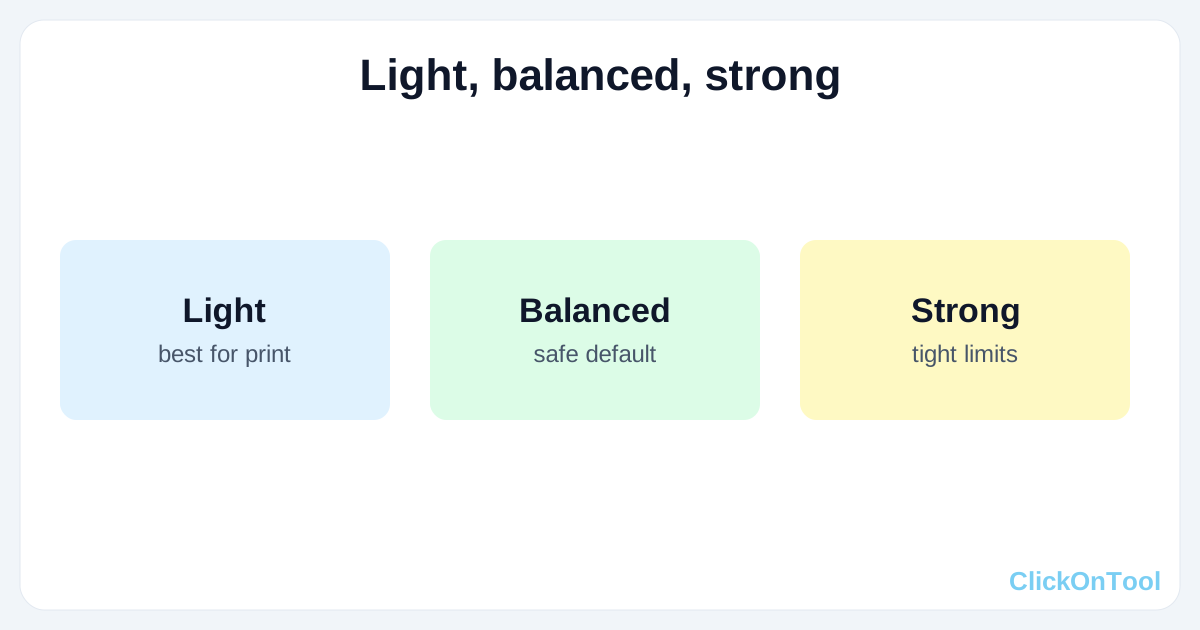
If quality looks good but the file is still too big, do one stronger pass from the original file, not from the already compressed copy. Compressing an already compressed file stacks visible damage, so always start from the original.
Step 4. If it is still too big, change the approach
Sometimes even strong compression is not enough, especially for a very tight form limit. In that case, change what is inside the file instead of pushing quality lower and lower.
- Split a very long PDF into parts and send only the pages the recipient asked for, using a PDF splitter, then compress each part.
- Remove pages you do not need, such as blank pages, duplicate scans or appendix pages, before compressing.
- If a scanned page is the problem, check whether a lower scan resolution would still be readable, and rescan at that resolution if you have the original paper.
- For an exact form target, follow the dedicated guides: [compress a PDF to 200KB and compress a PDF to 100KB. Those guides use the same tool, but tune the passes for a strict limit.
Getting your PDF under the limit
To compress a PDF, check what is making it big, run a balanced pass in your browser, check the quality page by page, and only go stronger from the original if you still need to. Most files are done in one pass, and the stubborn ones need a different approach, not just a lower quality setting. Try the free PDF compressor on ClickOnTool, with no signup and no upload, and keep your original safe until you have checked the result.